
TweetMeme is huge, and bloggers know it. It is a wildly popular way to help people share the brilliant content that you have worked so hard to produce. You will find the TweetMeme button on many popular blogs. Another thing you will often see on blogs is a row of Sociable links. In case you are not familiar, Sociable is a WordPress plugin that makes it really easy to add social sharing links to a blog. I use both of these, and I like them. Kudos to Joost de Valk for creating Sociable and fav.or.it for creating TweetMeme.
Sociable is really cool, but the “Tweet This” button really left me with a need for more. By default, it did not shorten the URL, add a title, or include the “RT @murnahan” that I wanted. So, I thought it would be cool to add a TweetMeme button within my Sociable links rather than to have the extra bulk of both of them at the end of each of my articles. Including TweetMeme and Sociable together just made it look a bit nicer and it keeps all of those sharing links right there together in one place. Now it looks like the image below (see the bottom of this blog article for the real thing):

Here is How to Add TweetMeme to Sociable
For this demonstration, I have used both the TweetMeme WordPress plugin as well as the Sociable WordPress plugin.
In your WordPress panel, go to “Plugins” where you will see a list of your active plugins. Find your “Sociable” plugin and click “edit”.
Don’t be intimidated if you are not a programmer. You are just looking for a little piece of code that looks like the image below. Simply search within the page for “sociable_tagline” and you should find it easily.
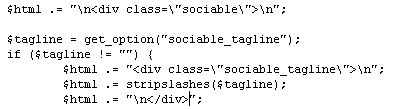
The part you will be working with is actually the very end of this, right after the closing “div” and immediately before the double quote (“) followed by a semicolon (;). This is the spot where you will add the snippet below to include your TweetMeme button. It will need to be formatted a tiny bit differently than you would use in other places. Below is a snippet for you to edit as necessary.
The code above will work, but you will probably not want to stop there. You may want to add things such as your Twitter username to retweet, which you may add by putting “&source=yourusername” right after the word “permalink”. If you want to add information such as a Bit.ly API key, that is easy, too. If so, just add it in the way you normally would, according to TweetMeme documentation, but be sure that you have a “\” slash before any double quotes (this is easy to overlook).
Of course, there may be slight variations in different versions of WordPress and Sociable, and if so, feel free to include your experience in the comments here. As with all programming, you work at your own risk and I will not be held responsible if you blow something up.
I welcome your comments.
